
If you are a planner, you probably have already started holiday gift shopping. It hits me when I posted Toca Hair Salon Christmas – I could start looking for deals on apps my son likes and put them on an iPod we don’t use anymore. It would be a good holiday gift.

If you like the idea, but have no extra device to spare, you can still buy some good apps and then “hide” them. Below we introduce 3 levels of hiding, from the easiest to the hardest. You can decide which one you want to use, based on your child’s tech savvy level.
1. Download the app on a device your child doesn’t use. If he/she uses the iPAD, then download it on your iPhone. This works for families have strict rules. But if you are like me, the child can use my or my husband’s phone, and he knows the passwords, then this trick won’t work. You have to try the next one.
2. After you download the app and check to make sure the app works fine, you delete the app. Don’t worry, you still own the app even it is not on your device. All you have to do is to re-download the app the night before you are ready to give the gift. There is no charge on re-downloads. Here is the detailed instruction on how to do it.
This trick will work for most kids, especially kids 10 and younger. However, if you have a very tech savvy child, who checks the “purchased apps” regularly, you want to use the next trick.
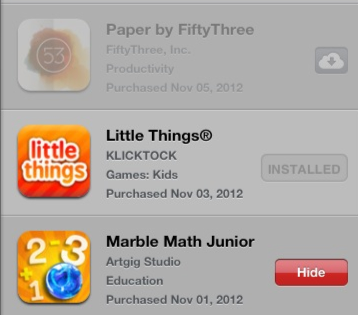
3. After you download the app, go to App Store and tap APP at the bottom of the screen, then tap on the icon on the top right corner, which is your app store icon. You then tap on Purchased. Here you will see a list of apps you bought. Find the app you want to hide, swipe left or right on the cloud icon next to the app name. The cloud icon will change into a red Hide button. Tap the Hide button. Now no one is able to find the app, not even on the purchased list.
To recover the hidden apps, you need log in your app store profile following the steps below:
On your device, tap on the App button at the bottom of the screen, then tap on the profile icon at the top-right corner. Then tap on your profile name. It will ask you to sign in again. After signing into your account, scroll down a little, you will see the section Hidden Purchases. Tap on the “Open” button next to the app that you want to unhide. The app should show up on your device again.
Hope this helps. These tricks are also helpful if you have some apps you don’t want your child see, such as apps with kids inappropriate contents or confidential information.
If you like this guide, You will also like another tip for busy parents: How to Set up a iTunes account without a credit card.



Wow, I didn’t even think that I could do that! Thanks!
I was trying to unhide games I purchased read instructions went to itunes I saw nothing that said quick links or account all hat was listed are music or movies i purchased.
Hi Debby, the newer operating system has a different way to do it. I just updated the instruction. Now you can unhide the app on your device directly. Please check the updated direction, and let me know if you have more questions.
This is without a doubt excellent everything that you have implemented in this article and would like to discover a lot more content from your website. To obtain more knowledge through posts you write-up, I have saved the site.
iOS7 it didn’t work… too bad
Thanks for the note. We updated the guide for iOS7 and 8.
Wonderful blog! Appreciate it
Wow, that’s what I was searching for.
Glad we can help.
Thanks very helpful.
Wonderful post. Thanks.
Wow that was unusual. I just wrote an very long comment but after I clicked submit my comment didn’t appear. Grrrr… well I’m not writing all that over again. Anyhow, just wanted to say excellent blog!
sorry for that. Not sure what happened. Thanks for the note!
Hello all, here every person is sharing such familiarity, therefore it’s good to read this weblog, and I used to pay a visit to this weblog daily.
Today, while I was at work, my cousin stole my iphone and tested to see if it can survive a forty foot drop, just so she can be a youtube sensation. My apple ipad is now broken and she has 83 views. I know this is entirely off topic but I had to share it with someone!
Hello there! Quick question that’s totally off topic. Do you know how to make your site mobile friendly? My web site looks weird when viewing from my iphone 4. I’m trying to find a theme or plugin that might be able to correct this problem. If you have any suggestions, please share. Thank you!
I have read so many articles or reviews but this post is genuinely a fastidious paragraph, keep it up.
Thanks!
So here’s a dumb question. If the icon s hidden (kids inappropriate etc) then how can I start the app if as an adult I want to use it? Do I have to go through the process of unhiding it before i can use the app?
This is the way I would do. I wish I knew some easier ways!
I has no idea you could hide a purchased app. Thanks for the info!
Now you know!
This is a handy tid-bit that doesn’t show up on the apple how to manual.
I always find it hard to read manuals. 🙂 They tend to be organized by device tech structures, not by users’ need.
Thanks! Great info.
Glad you find it helpful!
Thank you very much for this information!
Great information! Thanks!
You are welcome!